
Leads are potential customers or contacts who have shown interest in your product or service but have not yet been qualified or converted into a deal. The Lead module in Taskip helps you capture, organize, and manage these prospects efficiently to improve conversion rates and streamline your sales pipeline.
Overview
The Create Lead feature allows users to manually add a new potential client into the system. Each lead can later be nurtured, qualified, and converted into a deal within the sales pipeline.
This module is designed to:
- Centralize all incoming prospects
- Track engagement and interaction history
- Improve follow-up efficiency
- Support conversion into deals
How It Works
Taskip’s lead management system provides a structured workflow:
- Capture a lead from manual entry or external sources
- Assign ownership to a team member
- Categorize by status, source, and value
- Track interactions and updates
- Convert qualified leads into deals
This ensures no potential customer is lost or unmanaged.
Navigation
To access lead management:
- Go to Taskip Main Menu
- Click Leads
- You will be directed to the Lead List Page where you can:
- View all leads
- Filter by status, source, or owner
- Search and manage lead records
- Create new leads
How to Create a Lead
Step 1: Open Lead Creation
- Navigate to: Taskip > Leads
- Click the Create Leads button
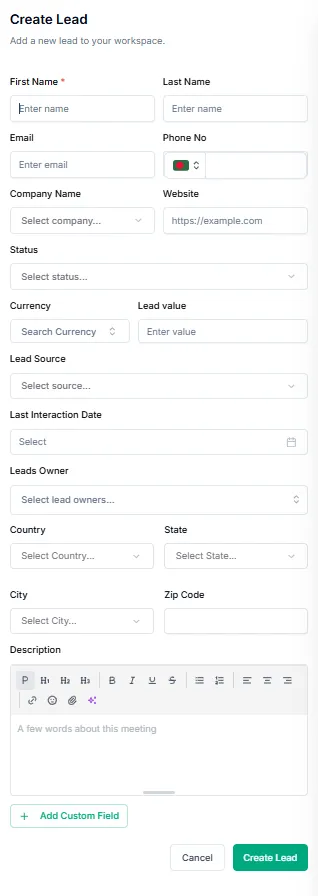
Step 2: Fill Lead Details
Below are all available fields and their purposes:
Lead Form Fields (Detailed)
First Name
Type: Text (required)
Stores the lead’s first name.
Last Name
Type: Text
Stores the lead’s last name.
Type: Email
Primary communication channel for the lead.
Phone
Type: Phone number
Used for direct communication or WhatsApp integration.
Company Name
Represents the organization the lead is associated with.
Website
Stores the lead’s company or personal website.
Status
Defines the current stage of the lead lifecycle.
Common statuses:
- New
- Contacted
- Qualified
- Unqualified
- Converted
Currency
Defines the currency for the estimated lead value.
Example:
- USD (United States Dollar)
Lead Value
Estimated potential revenue from this lead.
Used for:
- Forecasting
- Prioritization
- Sales reporting
Lead Source
Identifies where the lead came from.
Examples:
- Website
- Referral
- Social Media
- Email Campaign
- Cold Outreach
Last Interaction Date
Tracks the most recent engagement with the lead.
Used for:
- Follow-up scheduling
- Activity tracking
- Engagement analysis
Lead Owner
Assigns responsibility to a team member.
Functions:
- Tracks accountability
- Enables task assignment
- Helps manage workload distribution
Location Fields
These fields help segment leads geographically:
- Country
- State
- City
- Zip Code
Used for:
- Regional targeting
- Sales segmentation
- Reporting analytics
Description
A free-text field for additional information such as:
- Lead requirements
- Communication notes
- Internal observations
- Sales context
Custom Fields
Users can extend lead data by clicking:
➜ Custom Fields
This allows adding organization-specific attributes such as:
- Industry
- Budget range
- Product interest
- Lead priority score
After filling in the required information, click Create Lead.
The system will:
- Validate required fields
- Create a new lead record
- Add it to the Leads list
- Make it available for filtering and conversion
Best Practices
- Always assign a lead owner immediately
- Keep lead status updated regularly
- Record last interaction date after every contact
- Use lead source for performance tracking
- Add detailed descriptions for better context
- Convert qualified leads into deals quickly