Adding Emoji:
- Access the Discussion Panel:
- Navigate to the “Discussion” tab to find your desired conversation.
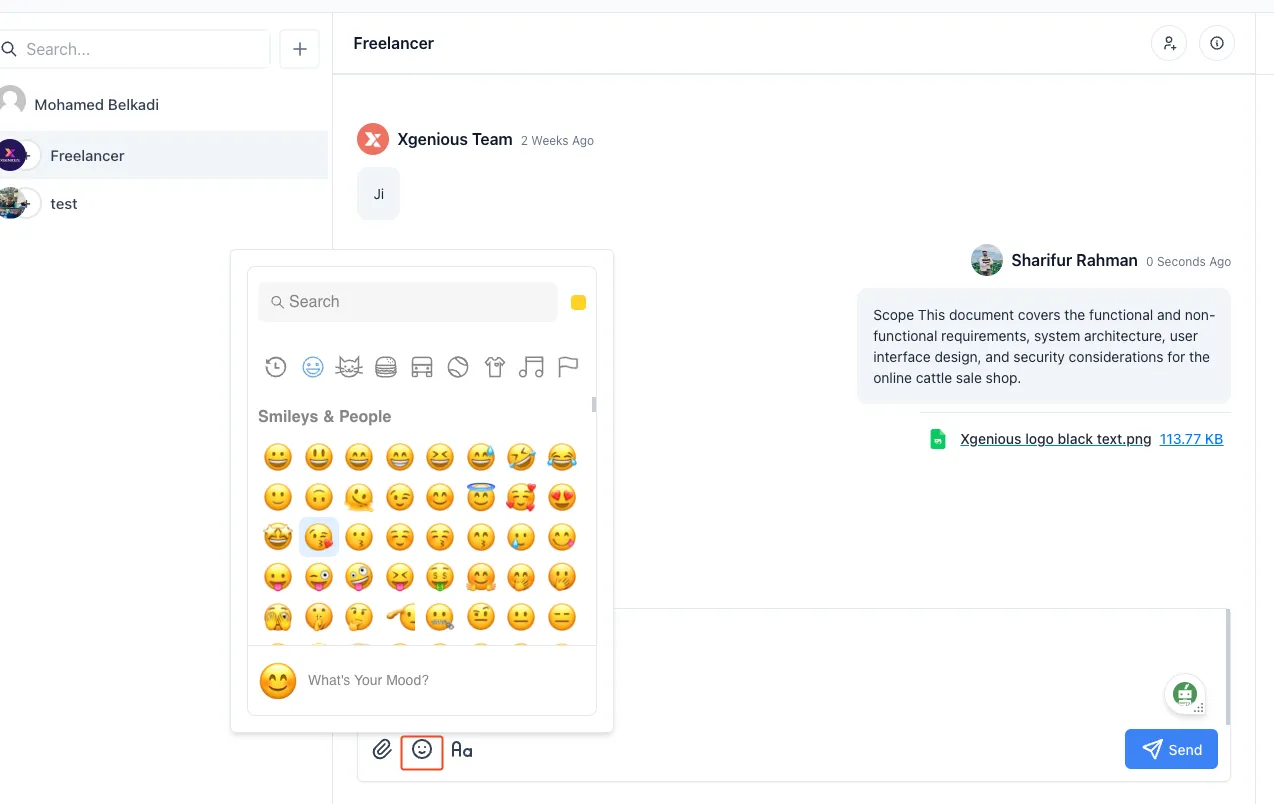
- Open the Emoji Picker:
- Click on the smiley face icon in the message input area to open the emoji panel.
- Choose Your Emoji:
- Browse through various emojis and select the one you wish to add to your message.
- Send the Message:
- Once you’ve added your emoji, type your message and click the “Send” button.
Formatting a Message:
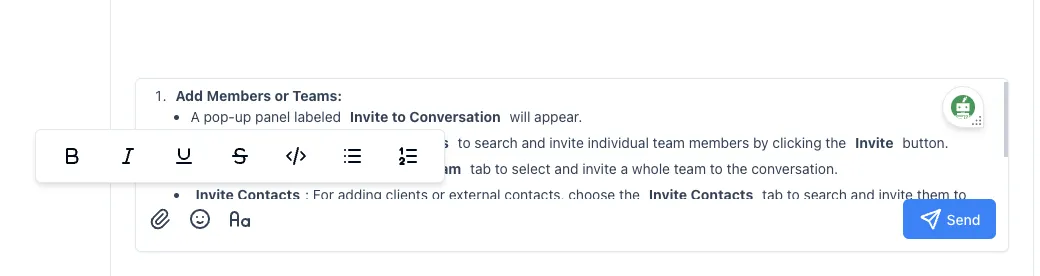
- Highlight Text to Format:
- While typing your message in the input box, select the text you wish to format.
- Open the Formatting Toolbar:
- A toolbar will appear with multiple formatting options like Bold (B), Italics (I), Underline (U), and more.
- Apply Desired Formatting:
- Choose the formatting style by clicking the respective option on the toolbar.
- Send the Message:
- After formatting, press “Send” to post your styled message.