
Responding to support tickets promptly and effectively ensures a smooth customer experience. Here’s a step-by-step guide on how to reply to a support ticket in your system
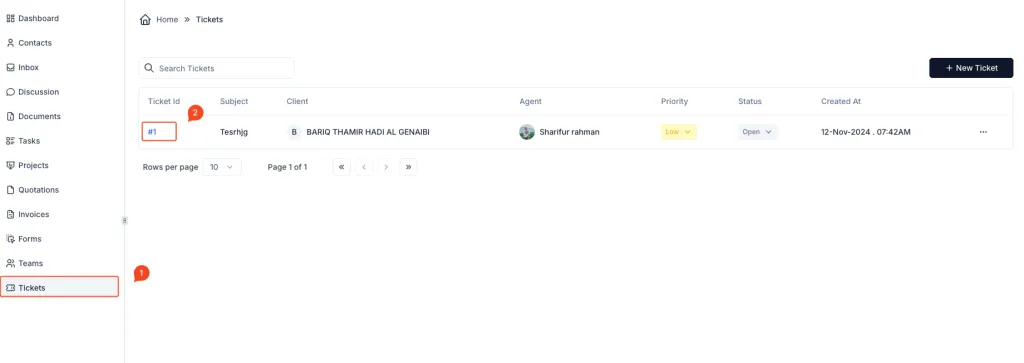
Steps to Reply to a Support Ticket:
- Navigate to the Tickets Section:
- From the sidebar menu, click on Tickets to view all active and resolved tickets.
- Open the Ticket:
- Find the ticket you want to reply to from the list.
- Click on the Ticket ID (e.g.,
#1) to access the ticket details.
- View the Ticket Conversation:
- The ticket details page will display the conversation thread, including the customer’s query and previous replies.
- Compose Your Reply:
- At the bottom of the ticket page, locate the reply box.
- Type your response in the text input area. Ensure your reply addresses the customer’s concern clearly and concisely.
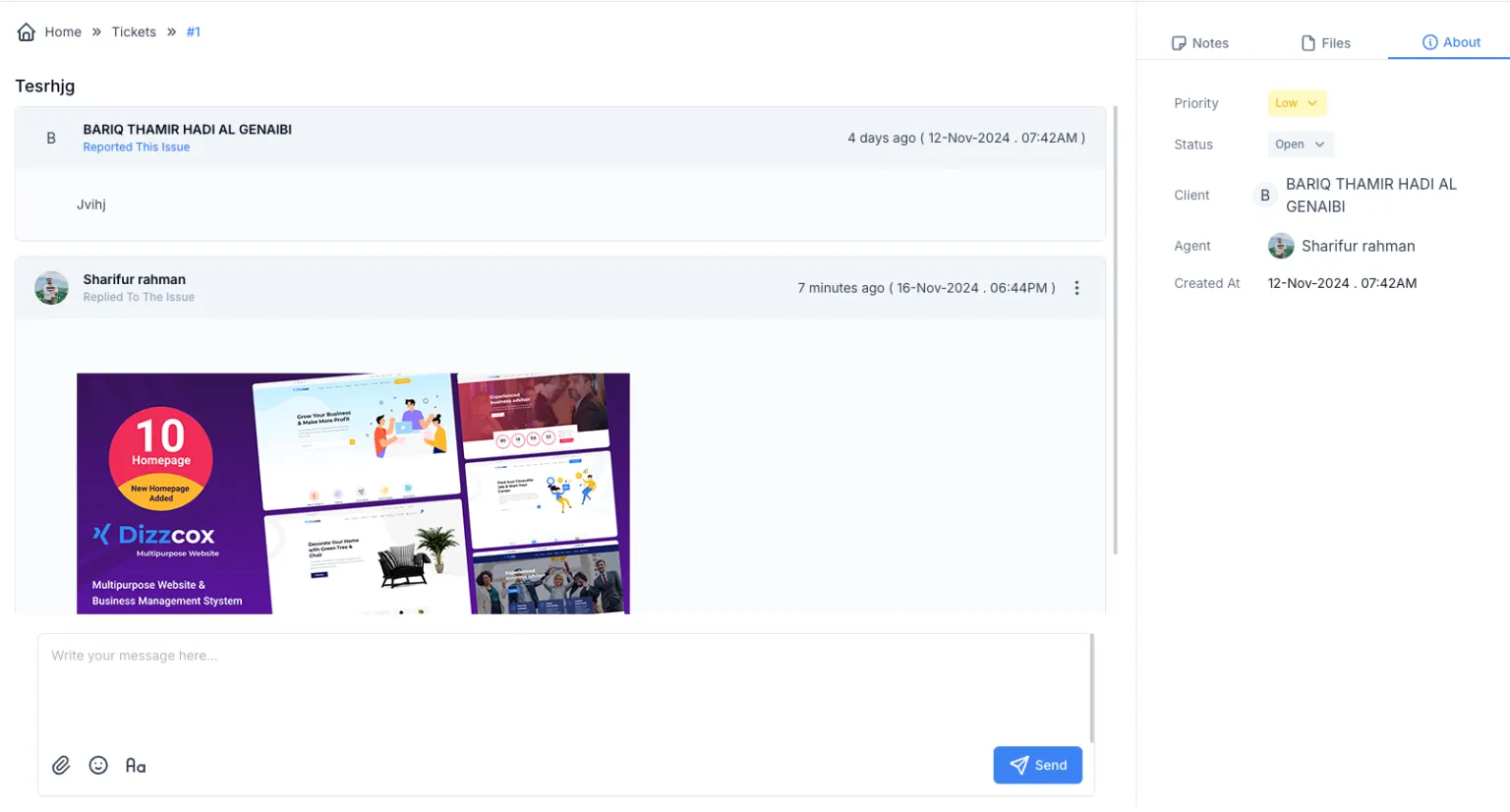
5. Attach Files (Optional):
- If your reply requires additional documentation or media, click on the attachment icon in the reply box to upload relevant files.
6. Send the Reply:
- Once your message is ready, click on the Send button (indicated by a paper plane icon) to submit your reply.
- The reply will be added to the conversation thread and visible to the customer.