
Support tickets often include shared files that are critical for resolving customer issues. This guide explains how to access all shared files associated with a specific support ticket.
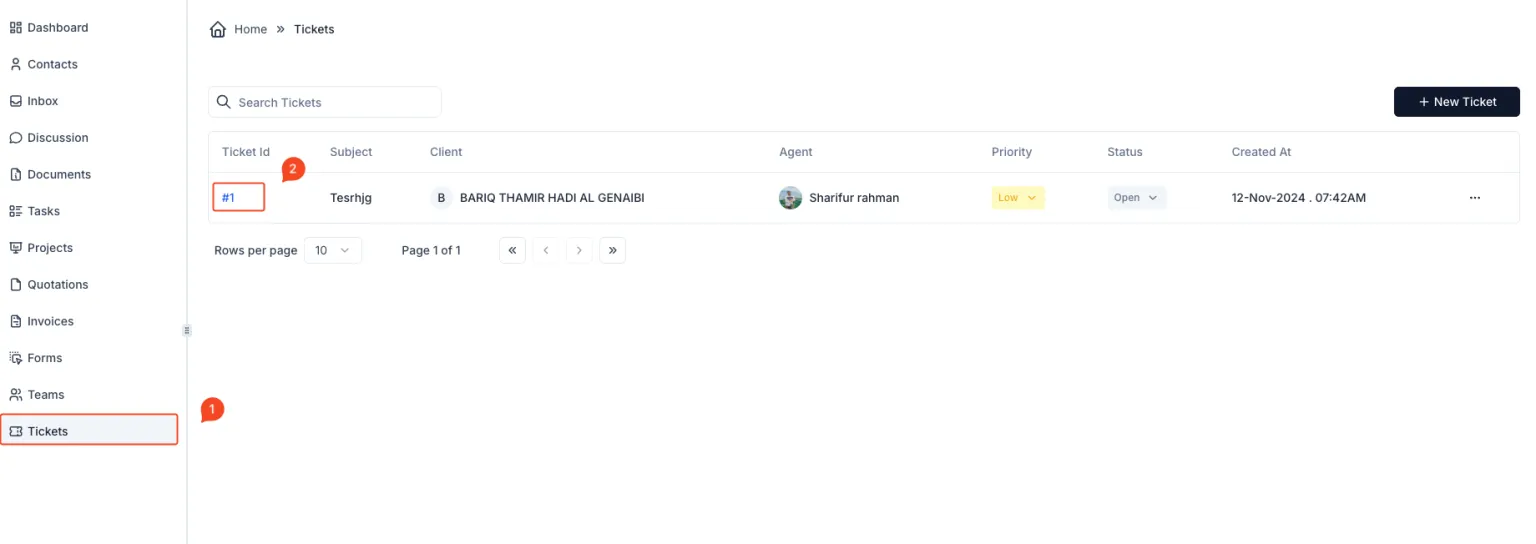
Steps to Access Shared Files:
- Navigate to the Tickets Section:
- Go to the sidebar menu and click on Tickets.
- This will display a list of all the support tickets.
- Select the Ticket:
- From the tickets list, identify the ticket you want to view.
- Click on the Ticket ID (e.g.,
#1) to open the detailed view of the ticket.
- View the Shared Files:
- Once inside the ticket details page, navigate to the Files tab located at the top of the ticket view.
- All files shared within the ticket will be listed here, along with their file names, sizes, and preview or download options.
- Preview or Download a File:
- To preview a file, click on the eye icon next to the file name.
- To download a file, click on the file name or the appropriate download button.
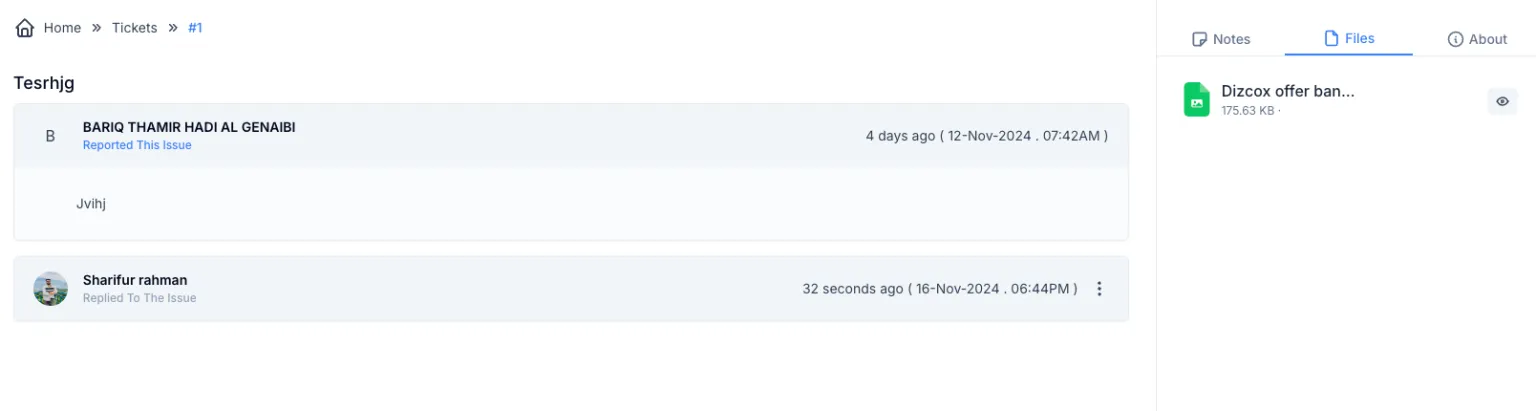
Key Features of the Files Tab:
- Centralized Access: View all shared files related to the ticket in one place.
- Preview Support: Quickly preview images or documents without downloading them.
- Easy Downloads: Save files locally for further analysis or resolution.
By following these steps, you can efficiently manage and review shared files in support tickets, ensuring seamless issue resolution and customer support.