
You can configure your workspace settings to customize how your organization appears and operates in Taskip.
- Log in to your Taskip account.
- Go to Settings.
- Click Workspace.
In the Workspace settings, you will find the following sections:
Company
Manage your company information and business details from the Company settings.
Select Company under Workspace. From here, you can update the following information:
Basic Information
- Name – Enter your company name.
- Email Address – Add your business contact email.
- Company Website – Provide your official website link.
- Address – Enter your company address.
- Select Industry – Choose the industry your business belongs to (e.g., Manufacturing).
- Description – Add a short description of your company.
Branding
- Logo – Upload your company logo.
- Supported formats: PNG, JPG, GIF (up to 5MB)
- Signature – Upload your company signature for documents or communications.
- Supported formats: PNG, JPG, GIF (up to 5MB)
After making the necessary updates, click Save Changes to apply them.
Domain Setting
You can configure a custom domain for your Taskip workspace to enable a full white-label experience.
- Select Domain Settings under Workspace
- You will find your Current Domain, which is automatically assigned by Taskip.
Example -https://popus.taskip.app (Primary)
You can continue using the default domain if you prefer.
- Add your Custom Domain. Enter a fully qualified subdomain (e.g., crm.yourdomain.com)
- Click Add Domain and configure the required DNS records with your domain provider.
- Once DNS is set correctly, verify the domain.
Workspace SEO
Configure the metadata for your Taskip workspace to improve search visibility and sharing previews.
Go to Settings > Workspace >Workspace SEO.
SEO Settings:
- Meta Title – Enter the title that will appear in search engine results.
- Meta Description – Add a short description for your workspace that appears in search results.
- OG Image – Upload an Open Graph image for social sharing.
- Recommended size: 1200x630px
- Maximum file size: 5MB
Click Save Changes to apply your SEO settings.
Appearance Settings
The Appearance tab allows you to personalize your Taskip workspace to reflect your brand identity.
Steps to customize your appearance:
- Go to Settings → Workspace → Appearance.
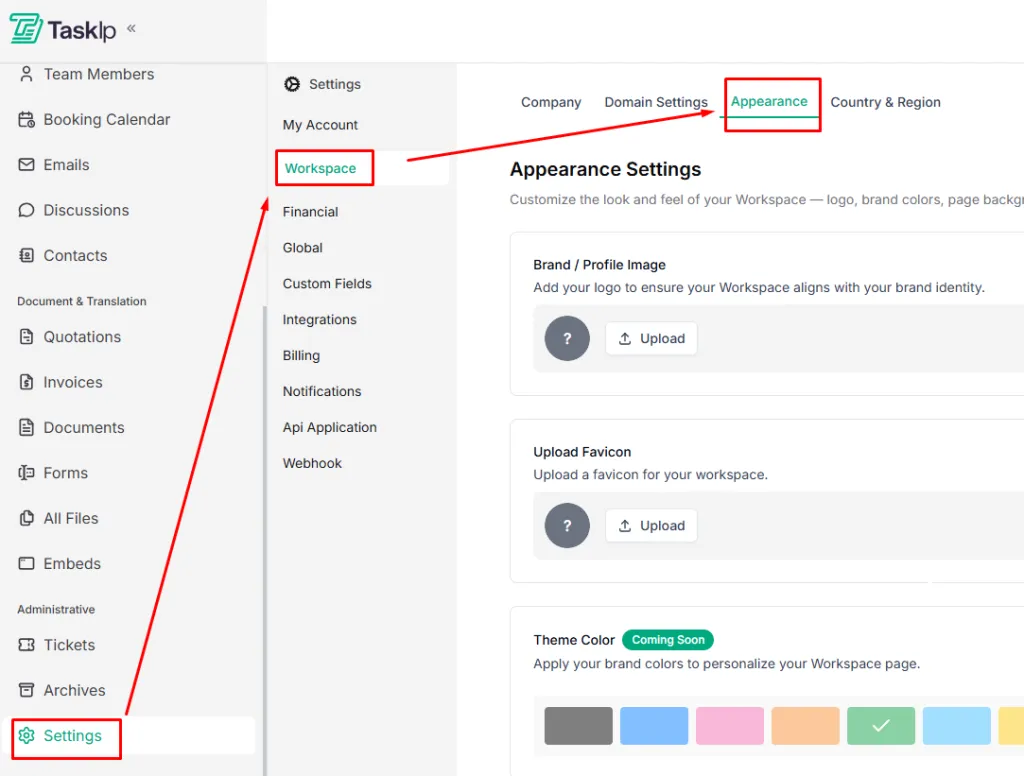
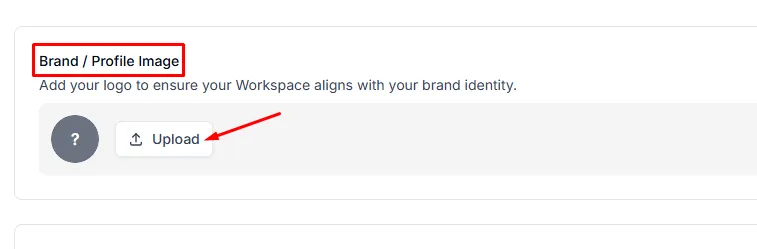
- Upload your Brand/Profile Image (company logo) to display on your portal.
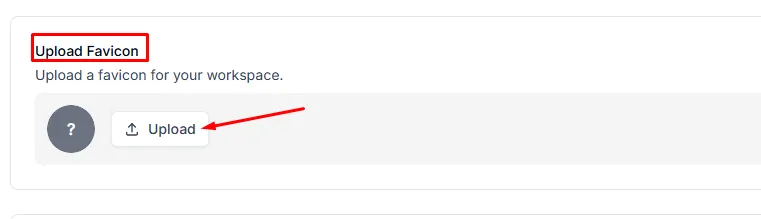
- Upload a Favicon for browser tabs to reinforce your brand.
| Tip: Use high-quality images for your logo and favicon to maintain a professional look across devices. |
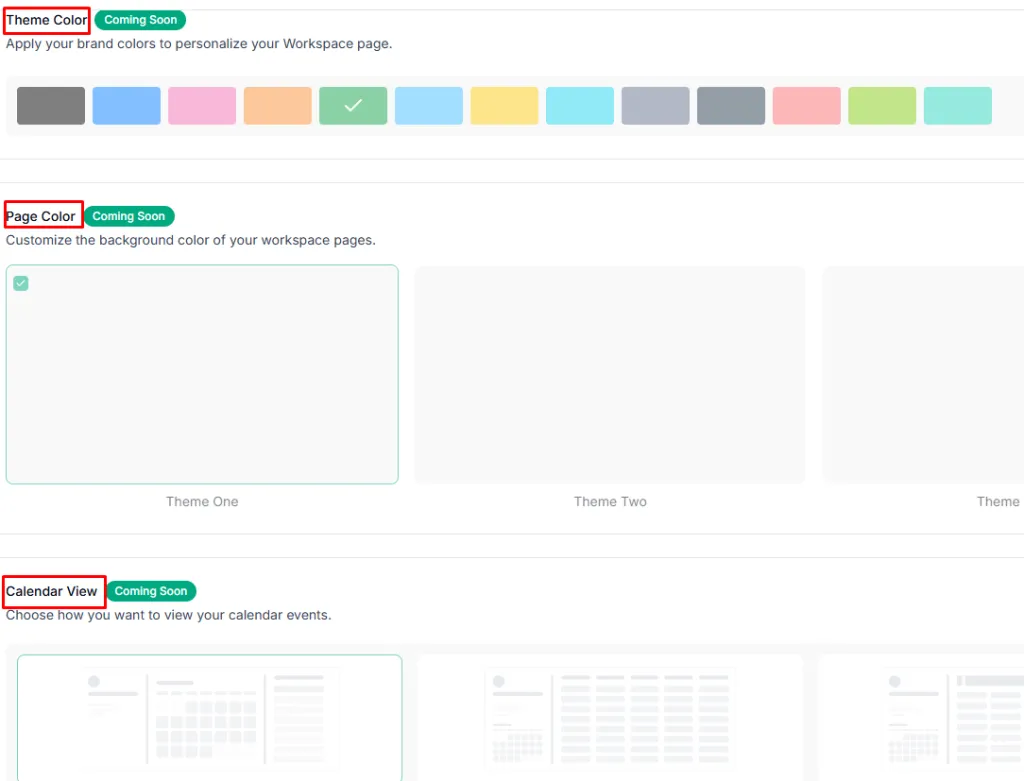
- Coming soon: Customize Theme Color, Page Color, and Calendar View for a fully branded experience.
| Note: Appearance settings apply to all workspace users and clients. |
Country & Region
The Country & Region tab lets you configure regional settings for your workspace, ensuring accurate scheduling, reporting, and localized experiences for your team and clients.
Steps to set Regional Preferences:
- Go to Settings → Workspace → Country & Region.
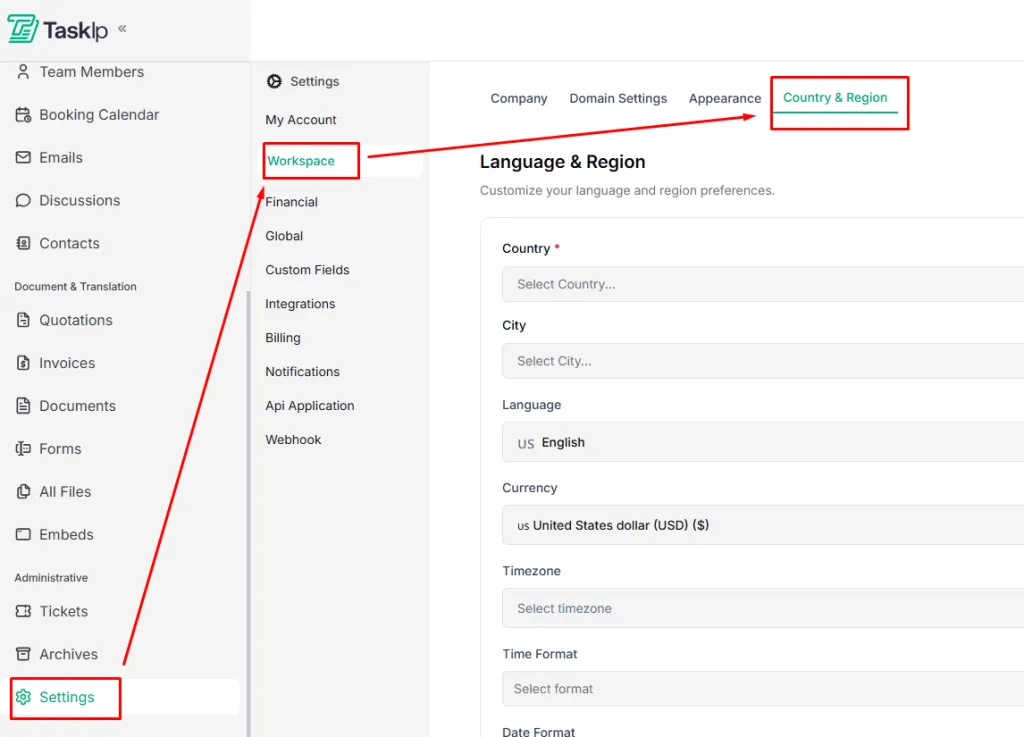
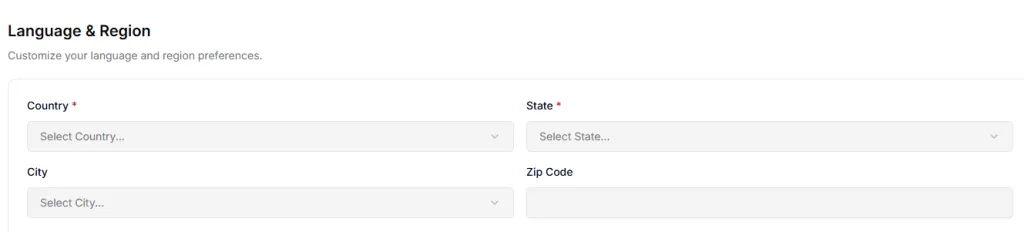
- Select your Country, State, City, and enter your Zip Code.
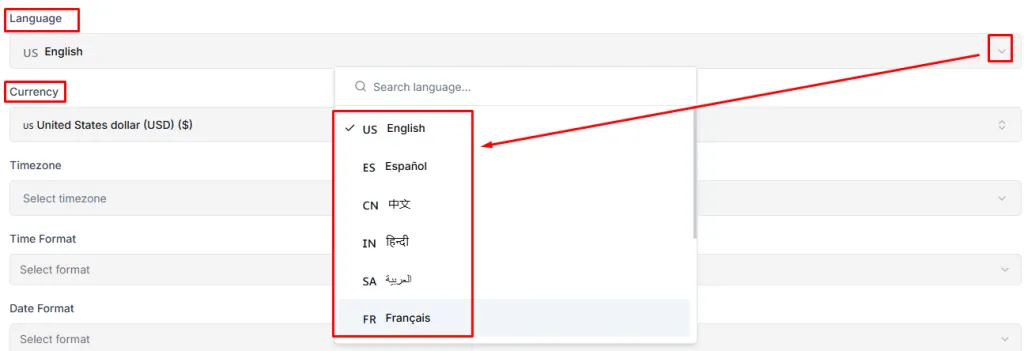
- Choose your preferred Language and Currency using the dropdown menu.
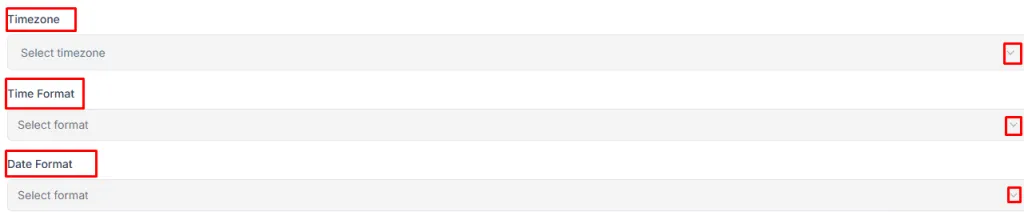
- Set your Timezone, Time Format (12-hour or 24-hour), and Date Format using the dropdown menu.
| Tip: Make sure your timezone and date/time formats match your team’s location to avoid scheduling conflicts. |
- Click Save to apply your preferences.
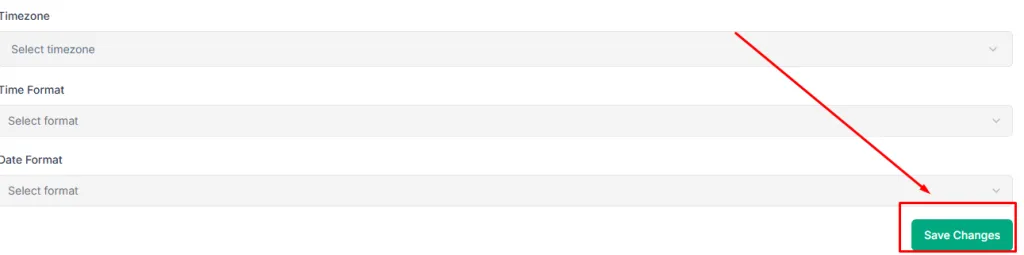
Note: These settings affect all workspace users and client-facing views.
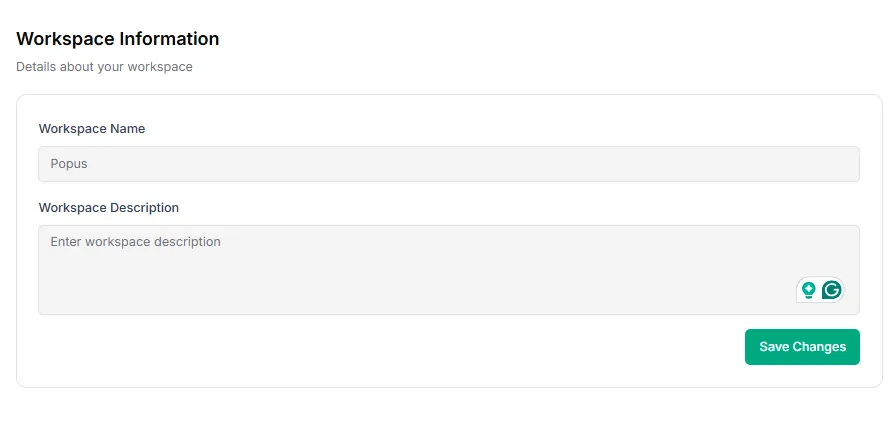
Workspace Information
Describe your workspace, add Workspace name and Workspace description.
Delete Workspace
You can permanently delete your Taskip workspace from the Company tab.
Steps to delete your workspace:
- Go to Settings → Workspace → Company.
- Scroll down to the Delete Workspace section.
- Read the warning carefully:
“ This will permanently delete your entire workspace, including all calendars, team members, bookings, and associated data. This action is irreversible — please proceed with caution.” - Click Delete Account to confirm.

| Important: This action cannot be undone. Make sure to export any important data before deleting your workspace. |