
The Lead Details Page provides a complete view of an individual lead, including contact information, activity history, files, and internal notes. This page acts as the central workspace for managing and nurturing a lead until it is converted into a client or deal.
Purpose
The Lead Details Page helps you:
- View complete lead information in one place
- Track interaction history and updates
- Manage lead data and context
- Store related files and notes
- Convert leads into clients when qualified
How to Access
- Go to Leads
- Click on any lead from the list
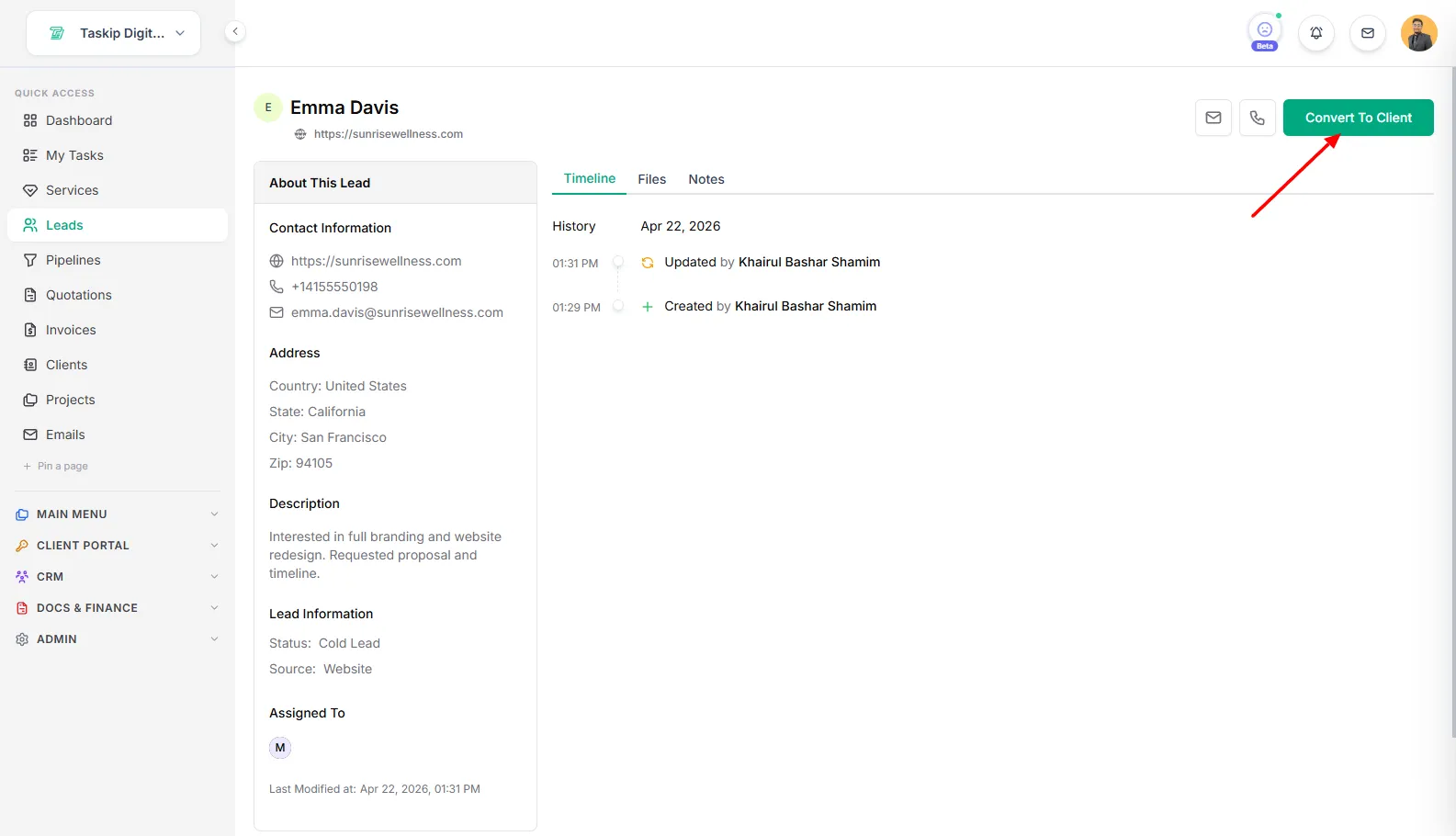
- You will be redirected to the Lead Details Page
Page Layout
The page is divided into two main sections:
3.1 Left Panel — Lead Information
3.2 Right Panel — Activity & Records
Header Section
At the top of the page, you will see:
Lead Name
- Displays the full name of the lead
- Example: Macaulay Arnold
Website
- Shows the lead’s associated website (if available)
Action Buttons (Top Right)
- Email Icon
- Quickly send an email to the lead
- Call Icon
- Initiate or log a phone call (requires Twilio configuration)
- Convert To Client
- Converts the lead into a client record
- Used when the lead is qualified
Left Panel — About This Lead
This section contains structured lead information.
Contact Information
Includes:
- Website
- Phone number
- Email address
This allows quick communication and reference.
Address
Displays location details such as:
- Zip Code
- (Other fields like Country, State, City if available)
Description
A text field that contains:
- Notes about the lead
- Requirements or context
- Internal observations
Last Modified
Shows:
- Date and time of the last update
- Helps track recent activity or changes
Right Panel — Activity & Records
This section manages all interactions and supporting data.
6.1 Tabs
Timeline (Default)
- Displays a chronological history of events
- Example:
- Lead created
- Updates made
- Activities logged
Files
- Stores uploaded documents related to the lead
- Examples:
- Attachments
- Proposals
- Shared files
Notes
- Internal notes for team collaboration
- Not visible to the lead
- Useful for tracking discussions or decisions
Timeline Section
The Timeline provides:
- Date-based activity grouping
- Timestamps for each action
- User attribution (who performed the action)
Example Entry:
- Created by [User Name]
- Time of creation
Key Features
Centralized Information
All lead-related data is stored in one place for easy access.
Activity Tracking
Every update is recorded in the timeline for transparency.
Quick Actions
Email, call, and conversion actions are accessible from the top.
Conversion Ready
Leads can be converted into clients directly from this page.
Lead Conversion
Convert to Client
- Moves the lead into the client database
- Retains important information
- Typically used after qualification
Workflow Example
- User opens a lead
- Reviews contact details and description
- Logs interaction or adds notes
- Uploads relevant files
- Tracks activity in timeline
- Clicks Convert To Client when ready
Best Practices
- Keep lead information updated
- Add notes after every interaction
- Use timeline to track engagement
- Attach relevant files for context
- Convert leads only after proper qualification