
Customize the content and appearance of the meeting booking form.
Steps to Configure Booking Form Contents:
- Navigate to Booking Form Settings Tab:
- In the meeting settings, click on the ‘Booking Form Settings’ tab.
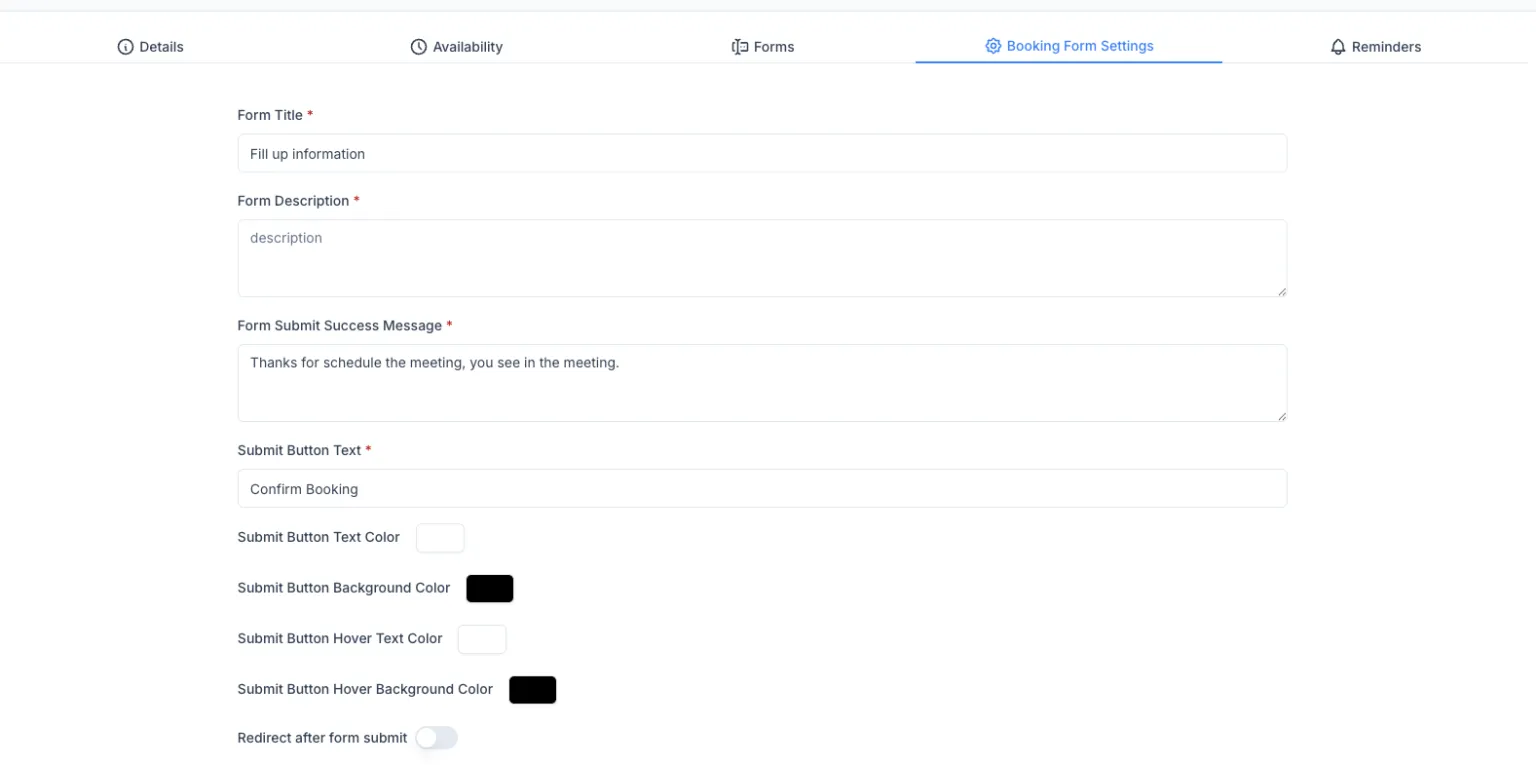
- Update Form Details:
- Form Title: Set a title for the booking form.
- Form Description: Add a description for better context.
- Form Submit Success Message: Customize the message displayed after successful submission.
- Customize Submit Button:
- Submit Button Text: Change the text on the submit button.
- Text Color: Choose the text color.
- Background Color: Set the background color.
- Hover Text Color: Define the text color on hover.
- Hover Background Color: Set the background color on hover.
- Enable Redirect After Submission (Optional):
- Toggle ‘Redirect after form submit’ to enable/disable redirection after submission.
- Save Changes:
- Once updates are complete, click on ‘Save Changes’.
Best Practices:
- Ensure the success message is clear and user-friendly.
- Use consistent button colors to align with your brand.
- Test redirection settings after enabling them.
That’s it! Your booking form contents are now configured and ready for use.