
To reschedule a meeting, follow these steps based on the images provided:
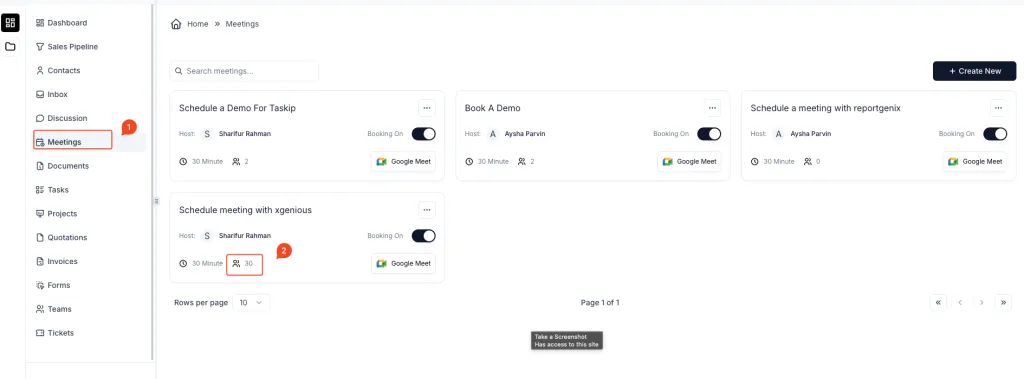
- Go to the “Meetings” section
- Navigate to the Meetings module from the left sidebar.
- Select the Meeting to Reschedule
- Identify the meeting you want to reschedule.
- Click on the number of attendees (represented by the people icon) to view the booking details.
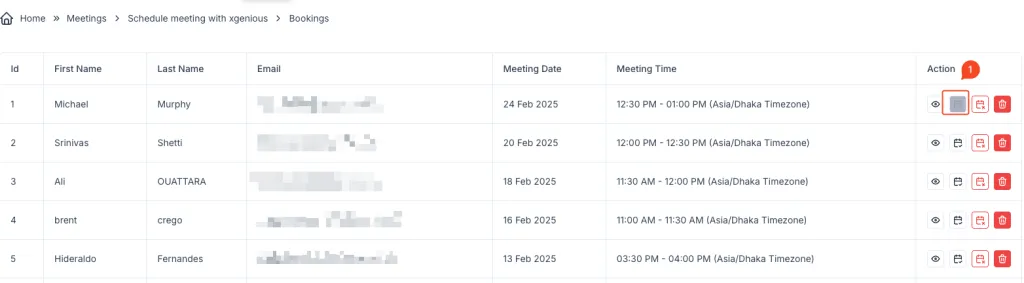
- Open the Booking List
- In the meeting’s booking list, locate the participant whose meeting needs to be rescheduled.
- Click on the Calendar Icon
- Under the Action column, click on the calendar icon for the respective booking.
- Edit the Booking Data
- In the “Booking Data” form:
- Choose a new Date.
- Select a new Time Slot.
- Ensure the correct Timezone is selected.
- In the “Booking Data” form:
- Save Changes
- Click the “Save Changes” button to confirm the rescheduled meeting.
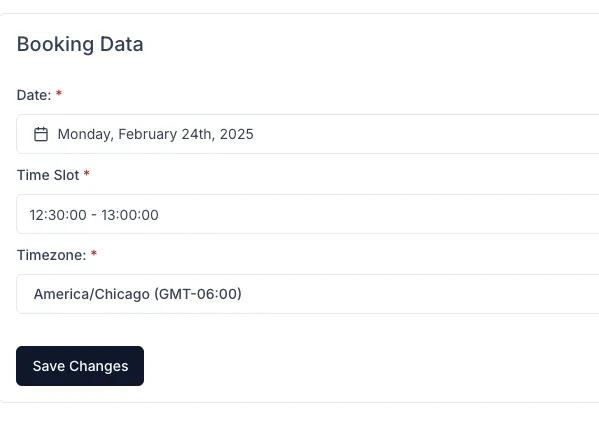
This process updates the meeting time for the selected participant while maintaining other details.